
Online registration and the police form
Each booking gets a private link: the guest fills in their details and sends their ID before arriving. You check, then print the police form.
Updated 14 October 2026
Set what guests must provide
Profile menu → Settings → Online Registration tab (owner and manager). Tick what is asked: ID document (type, number, photo), date of birth and nationality for every adult; also for children; back side for national ID cards and residence permits.
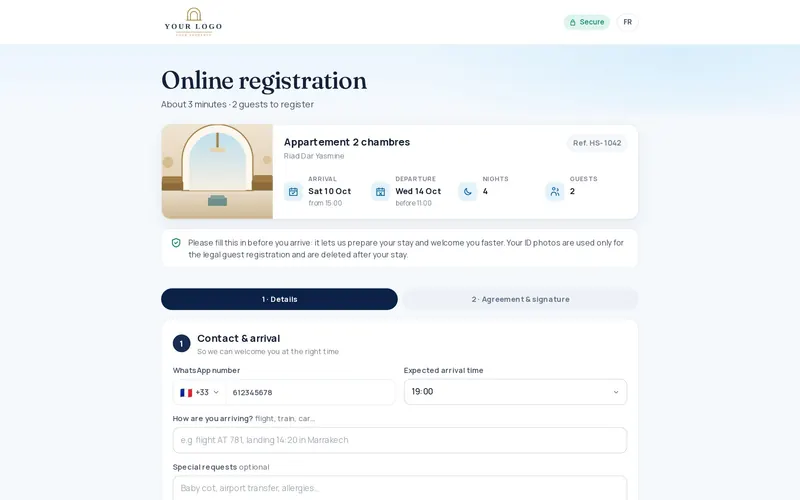
Choose how long photos are kept
“Delete document photos after check-out (days)”: from 7 to 730 days, 90 by default. Photos are deleted automatically.
Choose how the link goes out
The link goes out with any automatic message that contains the registration link (Automatic messages page). You can also tick sending on WhatsApp if WhatsApp is connected. Click Save.
Send the link for one booking
Open the booking: the Online Registration section shows the status (not sent, link sent, opened not finished, submitted awaiting verification, verified). Use “Email the registration link” or “Copy link (for WhatsApp)”.
Check the IDs
Once the guest has sent the form, click “Documents & fiche de police”: check each ID, rotate or crop the photo if needed, then Mark as verified.
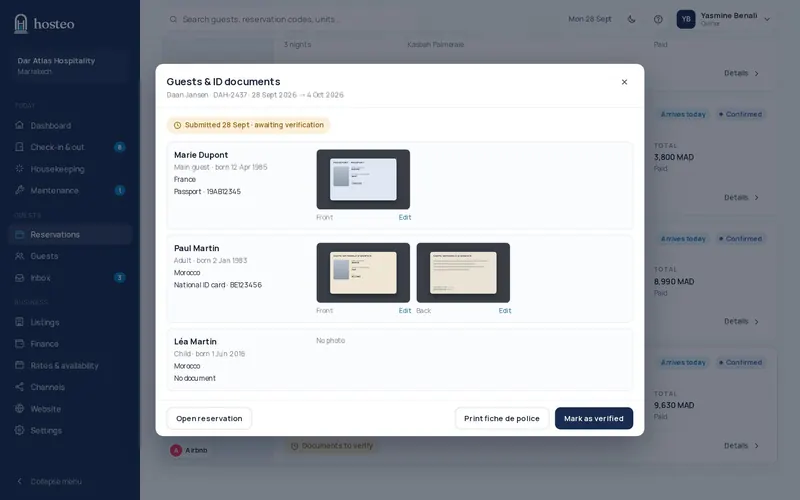
Print the police form
Click Print fiche de police (one per adult). Staff can also complete the form by hand in Hosteo: occupation, home address, coming from…