
Finance: revenue, collections and expenses
The Finance page shows one month at a time. It is open to the owner, manager and read-only roles; adding or deleting expenses is reserved for the owner and manager.
Updated 14 October 2026
Open the page and pick the month
Finance menu (Revenue group). Use the “Previous month” and “Next month” arrows. There are no tabs, no property filter and no export yet.
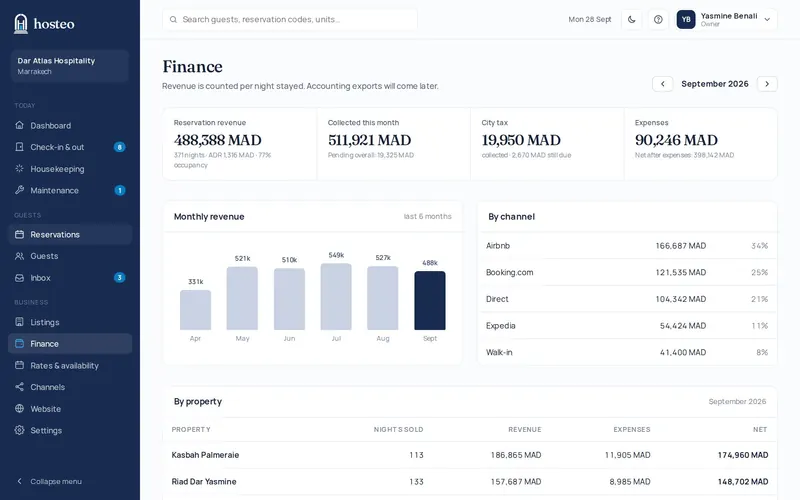
Read the top cards
Reservation revenue (with nights, average price and occupancy), Collected this month (and what is still pending), City tax (if on) and Expenses (with the net after expenses). Revenue is counted per night stayed: a stay across two months is split.
Explore the details
The “Monthly revenue” chart (6 months; click a bar to open that month), “By channel” and “By property” (nights, revenue, expenses and net).
Track cash to receive
When cash collected by staff hasn’t been handed over yet, the “Cash to receive” block appears. Click Mark as received once the money is in your hands.
Add an expense
In the Add expense panel: date, description, amount, category (cleaning, laundry, maintenance, utilities, supplies, channel commission, staff, taxes, other), property and vendor. Then Add expense.