
Change prices, minimum stay and closures
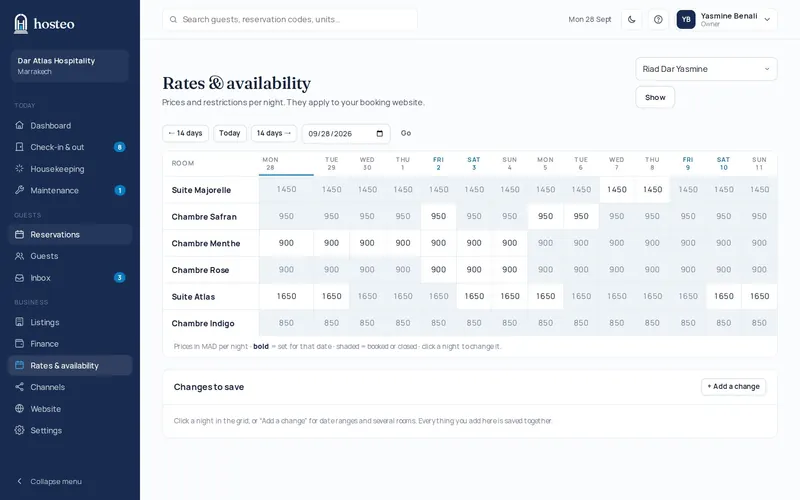
The Rates page sets your usual prices and seasons. The Calendar sets one night or a specific period. Prices feed your website and the connected channels.
Updated 14 October 2026
Set prices by unit type
Rates menu (owner and manager). The table has the columns Apartment type, Standard, Fri & Sat, Medium season, High season and Breakfast / guest. Leave a season price empty to keep the standard price, then click Save prices.
Add seasons
Under High and Medium season, “+ Add high season dates”: first night, last night, optional name and minimum nights, then Add period. Seasons repeat every year and can’t overlap.
Change one night or a period
Go to the Calendar and click Select. Click the first then the last night, then choose Change rate (price per night) or Conditions (minimum stay in nights).
Close dates
After selecting nights, choose Block dates (with an optional note). The nights are closed on every channel. “Reopen these dates” puts them back on sale.